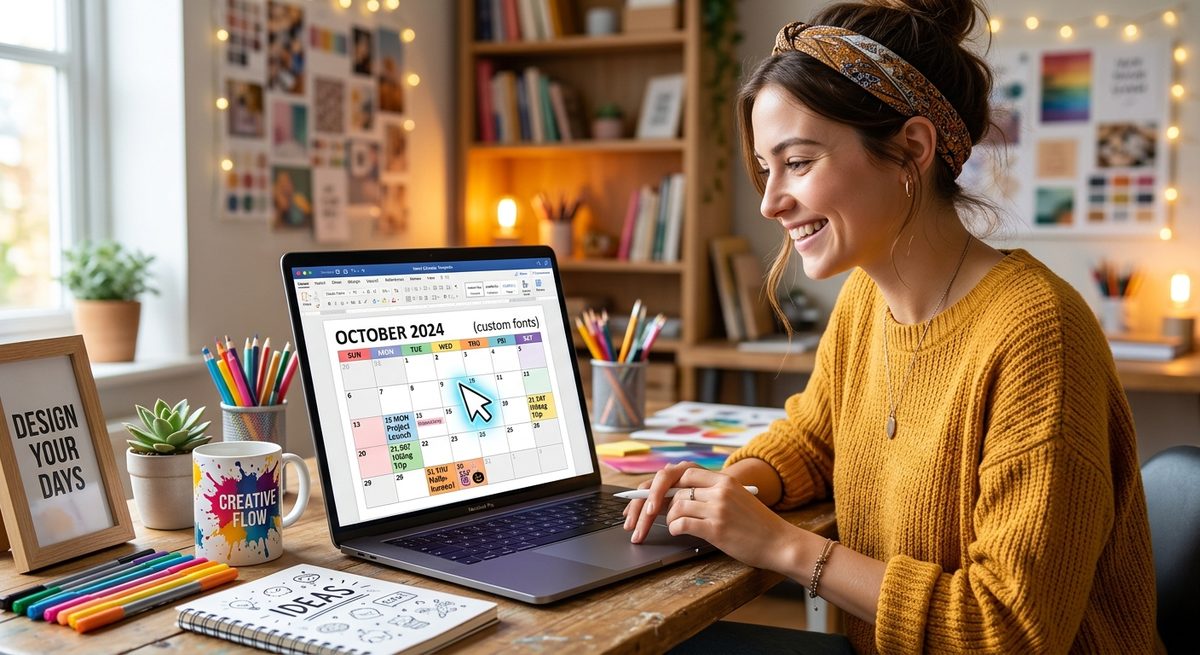
Your calendar should have room for your life. That might mean a wider box for Friday appointments, a shaded row for school breaks, or a notes column for the errands that never fit anywhere else. A Word calendar template gives you a useful starting point. With a few careful edits, you can turn it into a planner that suits your household, classroom, or desk. The trick is to adjust the design without disturbing the dates, losing your changes during conversion, or creating a file that prints badly.
Your Calendar Editing Plan: Start with a template that matches your planning period and paper size. Save a separate working copy before changing fonts, spacing, or date cells. Keep an editable Word file for future updates, then create a PDF for printing or sharing. Check converted files for shifted rows, missing text, and incorrect dates. Use sample information when testing an online service, and review its privacy terms before uploading a calendar that contains personal details.
Choose a Template That Fits Your Planning Routine
Begin with the job your calendar needs to do. A monthly layout works for family appointments and project milestones. A weekly layout gives you more space for homework, lesson notes, or daily tasks. An annual overview helps you spot busy stretches, but its small date boxes usually cannot hold much detail.
Choose your planning period before you start decorating. A January start makes sense for many home calendars. A teacher may need an August start. An office team may need a calendar that follows its fiscal year. Changing the heading alone will not turn one planning period into another. Every month and date still needs checking.
For US home printing, a template already sized for Letter paper reduces setup work. Letter measures 8.5 by 11 inches. A4 measures 210 by 297 millimeters and has different proportions. Changing between them can alter line breaks, cell heights, and page boundaries.
How Calendar File Formats Fit Different Tasks
| Format | Useful For | What to Check |
|---|---|---|
| Word (.docx) | Changing labels, fonts, notes, and calendar spacing. | Fonts and page breaks may shift between applications. |
| PDF (.pdf) | Sharing a finished layout and printing consistent pages. | Paper size, scaling, clipped text, and selectable text. |
| Excel (.xlsx) | Working with date formulas or repeated planning data. | Print areas, formula results, and page scaling. |
Protect Your Starting File Before Making Changes
Keep the original download untouched. Save a working copy with a clear name, perhaps “Family-Calendar-2027-Working.docx.” This gives you a clean place to return if a layout change causes trouble.
Check the file extension, too. Renaming a PDF with a .docx ending does not convert it into an editable Word document. Conversion requires software that reads the source format and writes a different one. Even then, the result may need repairs.
Before editing, look through every page. Some templates use ordinary tables. Others rely on text boxes, pictures, or several separate objects. Click inside a date box and try selecting its text. If the entire calendar selects as one image, you will not be able to edit individual dates as ordinary text.
- Confirm the year, starting month, and first day of the week.
- Check the document's paper size, orientation, and margins.
- Identify whether dates sit in table cells, text boxes, or an image.
- Save a separate working copy before adding personal information.
Adjust the Calendar Layout Without Losing Writing Space
Set the page size and orientation before changing small details. In desktop Word, these controls are generally under Layout. Menu names and available controls can vary by version. Landscape orientation often gives monthly date boxes more width. Portrait orientation can leave useful space below the grid for reminders.
If your template uses a table, select the calendar grid before adjusting its properties. Keep the seven weekday columns consistent unless you have a specific reason to give weekends less space. Uneven widths can make a full month harder to scan.
Watch what happens when you add a longer appointment. A row with an exact height can hide text that no longer fits. A row allowed to grow can push the calendar onto another page. Neither setting suits every template. Test the busiest date box, then choose a balance between readable text and a stable page layout.
For a monthly calendar intended to stay on one sheet, inspect table row settings and paragraph spacing. Extra space after each paragraph can quietly consume a surprising amount of room. Remove empty paragraphs you do not need, but leave enough breathing room to read each entry comfortably.
Use Fonts and Color With a Clear Purpose
A calendar works best when you can read it at a glance. Choose a familiar font and keep appointment text large enough for the person using it. A heading can carry more personality. The small numbers inside the grid need clarity.
Use color to communicate a small set of meanings. A pale green fill might mark school breaks. A darker label could identify a deadline. Add a short text label if the meaning would otherwise depend entirely on color. This also helps when someone prints the file in grayscale.
Leave some blank space. A calendar covered in decorative images may look appealing on screen but leave little room for handwriting. For a kitchen planner, generous date boxes may help more than an oversized month heading. For a student schedule, a narrow assignment area beside the calendar may be worth keeping.
Check Dates Before Copying a Design Across Months
Formatting mistakes are frustrating. Date mistakes can cause missed appointments. Check that the first day of each month appears under the correct weekday and that the month ends on the right date. February needs particular care in leap years.
A manually typed calendar does not automatically update when you replace the year in its heading. Copying last year's layout can leave every date attached to the wrong weekday. Use a trusted calendar you already have to verify the full month.
Check holiday labels against the schedule that applies to your situation. A school closure, workplace holiday, and federal observance may follow different arrangements. If you include both a holiday date and an observed day off, label them clearly. Leave room for local events that matter more to your household than a long list of unfamiliar observances.
Convert Files at the Point Where It Helps
Keep editing in Word while the content is still changing. Once the layout is ready, exporting a PDF creates a useful copy for printing or distribution. Keep the .docx file as your editable master.
A free browser-based service for Word document conversion fits naturally into this handoff when you need a supported format change without installing another application. Check which input and output formats are currently available before you begin. Test a copy of your calendar and inspect the result before relying on it.
Conversion from PDF back into Word needs extra attention. A PDF records page appearance, but its content may not map neatly to editable table cells. A converter may recreate a calendar using separate text boxes or break a single row into several pieces. A scanned calendar may require text recognition, which can misread small date numbers.
If a clean editable template is available, starting there can take less time than repairing a converted PDF. Choose conversion when it solves a real file problem, then judge the output by how accurately it preserves your calendar.
Keep Personal Details Out of Unnecessary Uploads
A family planner can reveal addresses, children's activities, travel dates, and medical appointments. A classroom calendar may contain student information. Think about those details before sending a file to any online service.
For a first test, use a blank template or replace private entries with ordinary sample text. Review the service's current privacy information for upload handling, retention, deletion, and access. A browser interface alone does not tell you whether processing happens on your device or on a remote server.
If the file contains information you cannot share, use an approved local application for conversion. Before distributing a finished calendar, review comments, tracked changes, and document properties as appropriate. Removing visible appointment text does not necessarily remove every piece of information stored in the file.
Review the Result on Screen and on Paper
Open the converted file instead of assuming the download succeeded correctly. Check the first page, the last page, and the busiest month. Compare them with your editable master. Pay attention to small text near cell edges, where clipping can be easy to miss.
- Count the pages and check that each month appears once.
- Look for missing dates, substituted fonts, and broken weekday headings.
- Confirm that long entries remain inside their intended date boxes.
- Check paper size and scaling in the print dialog.
- Print one sample page to assess margins, contrast, and handwriting space.
Use actual-size printing when the document matches your paper and fits within the printer's printable area. If an edge is cut off, inspect margins and scaling before printing the entire calendar. A fit setting may prevent clipping, but it can also shrink text and writing areas.
For shared Word files, ask a recipient to check the layout in their usual application if consistent editing matters. Different software and font availability can change pagination. A PDF companion gives them a reference for how the finished calendar should look.
Keep a Master You Can Reuse Next Year
Save your editable master, your finished PDF, and the original template in a clearly named folder. Keep a blank version without appointments if you expect to reuse the design. Store another copy in your usual backup location.
Next year, reuse the choices that worked: readable fonts, useful notes space, comfortable margins, and sensible colors. Rebuild or verify the date grid for the new year before adding events. A few careful checks will leave you with a calendar that feels familiar, prints cleanly, and has enough room for the plans you actually make.